Getting started with TinyTeller
A few steps, and your child can listen. You need no account: only the app and a pair of headphones.
The first time
-
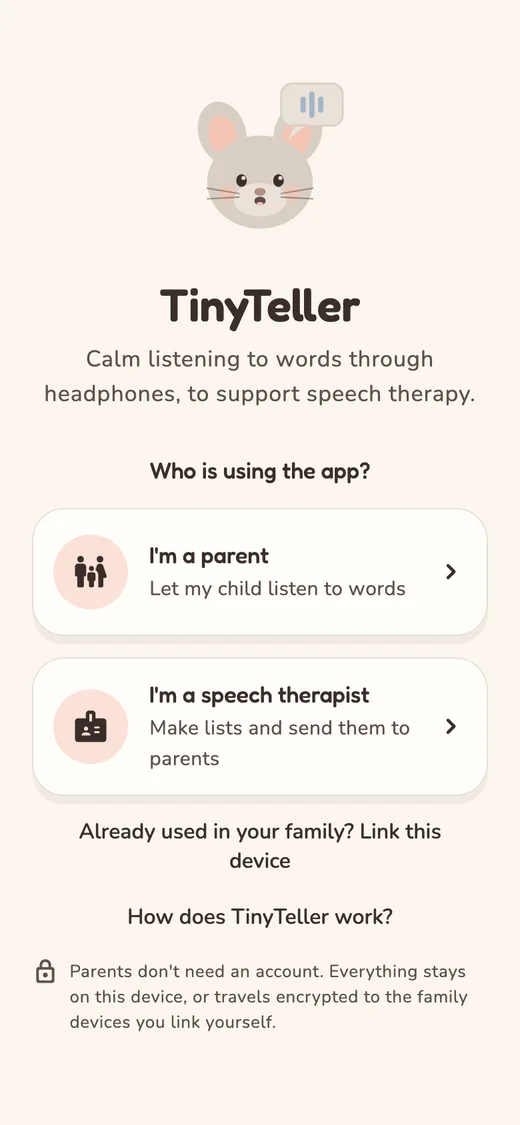
Say who you are
Open the app and tap I'm a parent. Next you can fill in your child's first name and choose a reminder.
Both can wait until later.
-
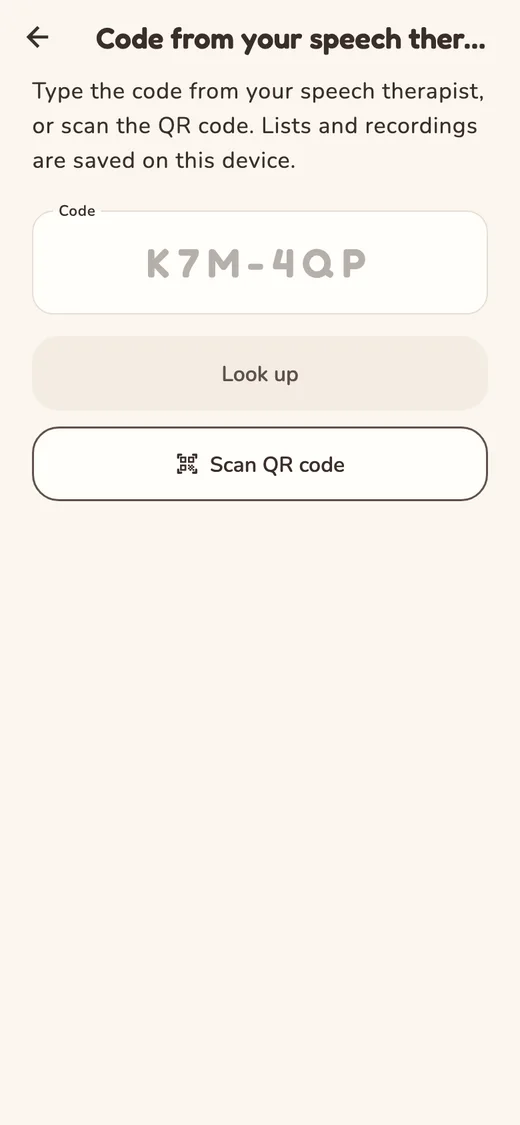
Enter the code
Tap Yes, I have a code and type the six characters, or scan the QR code. Tap Look up, then Link.
From now on, lists from your speech therapist arrive in the app by themselves.
-
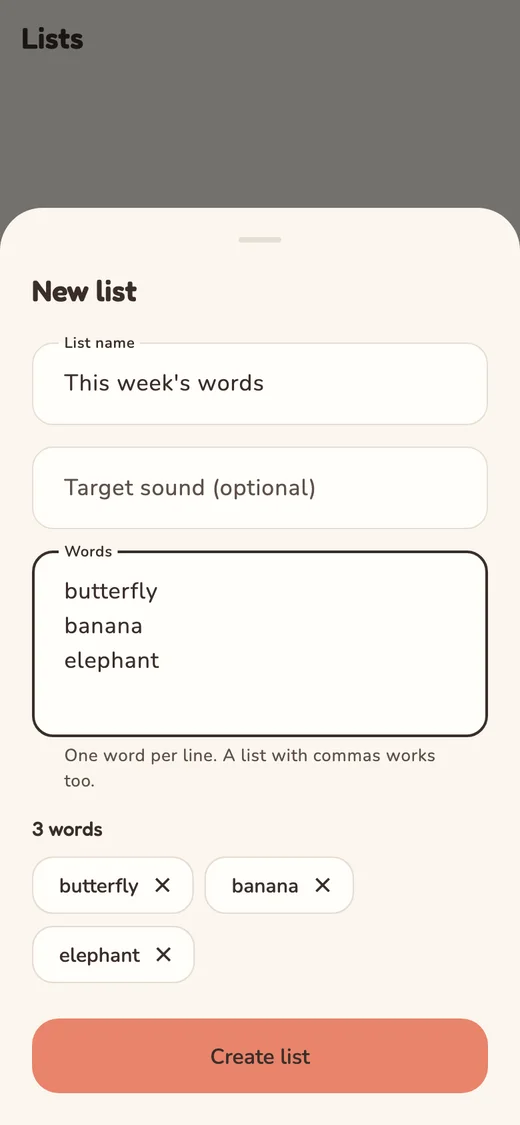
Make a list
Tap No, not yet. Go to Lists and choose Add a list, then Record words yourself. Give the list a name, type the words (one per line) and tap Create list.
Pasting them from a message works too.
-
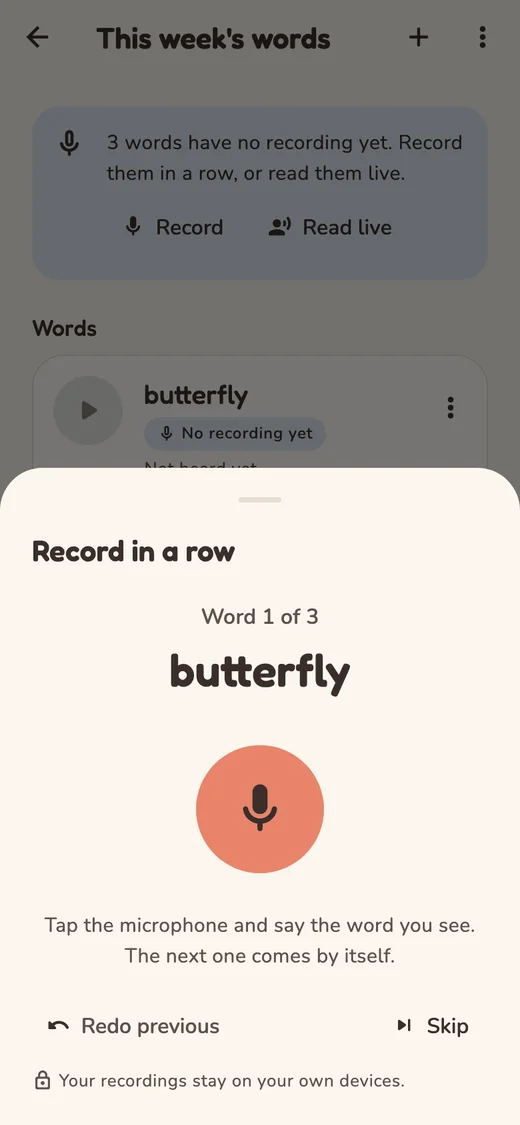
Record the words
Tap Record. Tap the microphone and say the word you see. The next one follows by itself.
Once is enough. Your recordings stay on this device.
-
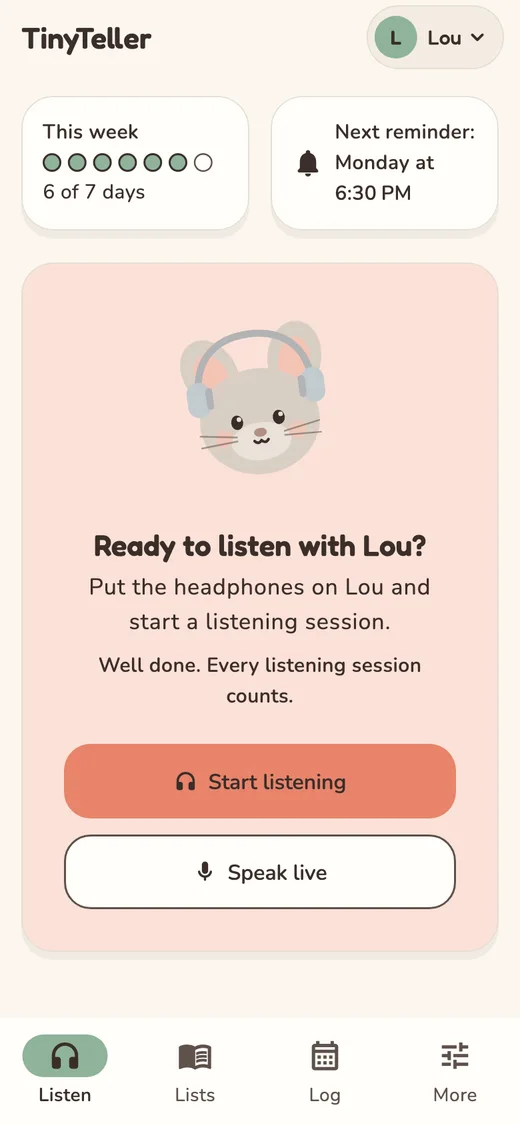
Headphones on, then start
Put the headphones on your child. Tap Start listening, choose the list and tap Start.
The first time, the app shows how to choose a safe volume.
-
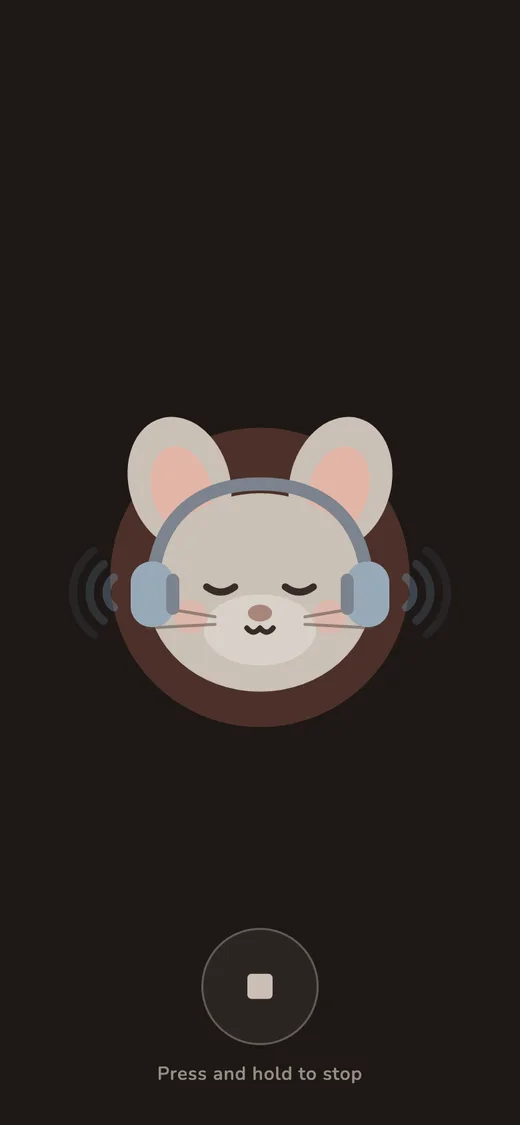
Let your child listen
The screen turns dark and the mouse listens along. The listening moment stops by itself.
Stopping early? Hold the stop button for two seconds.
That's it
The listening moment is now in the log and counts towards the weekly goal.
How do I…?
Set a reminder
- Go to More and tap Reminders.
- Tap + and choose the time and the days.
- Does your device ask whether TinyTeller may send notifications? Say yes.
Choose how long it lasts
- Tap Start listening.
- Under How long?, choose the number of minutes.
How long and how often? You agree on that with your speech therapist.
Enter a code later
- Go to Lists and tap +.
- Choose Code from your speech therapist.
- Type the code or scan the QR code.
Record a word again
- Open the list.
- Tap the three dots next to the word.
- Choose Record again.
For a word from your speech therapist, you can always go back to the therapist's recording.
Read aloud without recording
- Put the headphones on your child.
- In Listen, tap Speak live.
- Read the words. Your child hears your voice straight away.
Nothing is recorded. This only works with headphones.
Show what was listened to
- Go to Log. You see the days your child listened.
- Tap Share with speech therapist.
You share a picture, without your child's name.
Choose the weekly goal
- In Listen, tap This week.
- Choose how many days a week and tap Save.
A day counts once there was a complete listening session that day. Without a choice, the weekly goal is every day. Linked with your speech therapist? Then your speech therapist can choose the weekly goal.
Add a second child
- Go to More.
- Next to Children, tap + and fill in the first name.
Each child has their own lists and reminders.
Listening on two phones
- On the first phone: More, Family devices, Link a device. A QR code appears.
- On the other phone: on the first screen tap Already used in your family? Link this device, or go to More, Family devices, I have a code on another device. Scan the code.
- Does that phone already have words? Choose Merge or Replace with the family's.
After that the devices stay the same by themselves, including the logbook and the weekly goal. Each device chooses its own reminders and volume. Each device can unlink itself with Unlink this device; what is on it stays. Lost a phone? After 60 days without contact it leaves by itself, or choose Start the family again and link the other devices again.
Move to a new device
- On the old device: More, Backup, Make a backup. Choose a password and keep the file.
- On the new device: More, Backup, Restore a backup.
Without the password nobody can open the backup. Neither can we. Will you both keep listening? Then link the devices instead: see Listening on two phones.
Not working?
The code does not work
A code has six characters. The digits 0 and 1 and the letters O, I and L are never in it. A code for linking works once and stays valid for two weeks. Feel free to ask your speech therapist for a new one.
I hear nothing, or it is very quiet
Check that the headphones are plugged in properly and that the volume of your device is not turned all the way down. With headphones, TinyTeller plays softly on purpose. Read more in the app under More, Safe volume.
No reminder arrives
Check in the settings of your device that TinyTeller may send notifications. On an iPhone the app plans reminders eight weeks ahead, so open the app now and then.
The microphone does nothing
TinyTeller asks for the microphone at your first recording. Did you say no then? Tap Open settings in the app and switch the microphone on.
No new list arrives
New lists come in when you open the app and your device is online. Still nothing? In Lists, tap the three dots next to your speech therapist and choose Check now.
The other device does not show it
Devices catch up when the app opens and after each listening moment, when there is internet. Nothing there? Open the app on both devices. In More, Family devices you can see when each device last caught up.
Is your question not here? Write to hallo@tinyteller.app.
Are you a speech therapist?
There is a guide of your own: adding a child, making lists and sending them to the parents.
User guide for speech therapists