Getting started with TinyTeller
You record each word once. After that, a list takes a few taps and arrives at the parent's by itself.
The first time
-
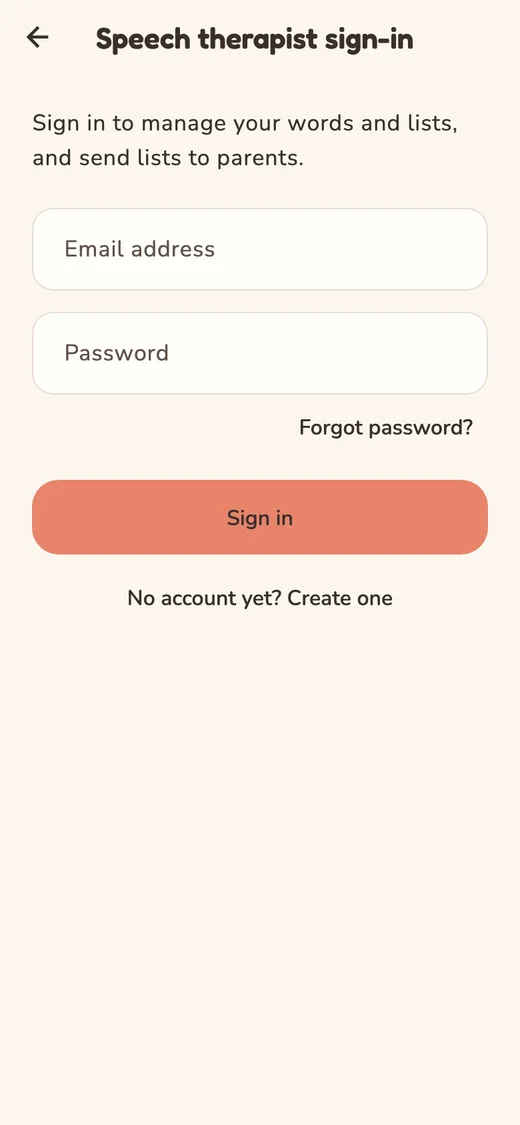
Create an account
Open the app and tap I'm a speech therapist. Then tap No account yet? Create one.
If you fill in the name of your practice, parents see it with your lists.
-
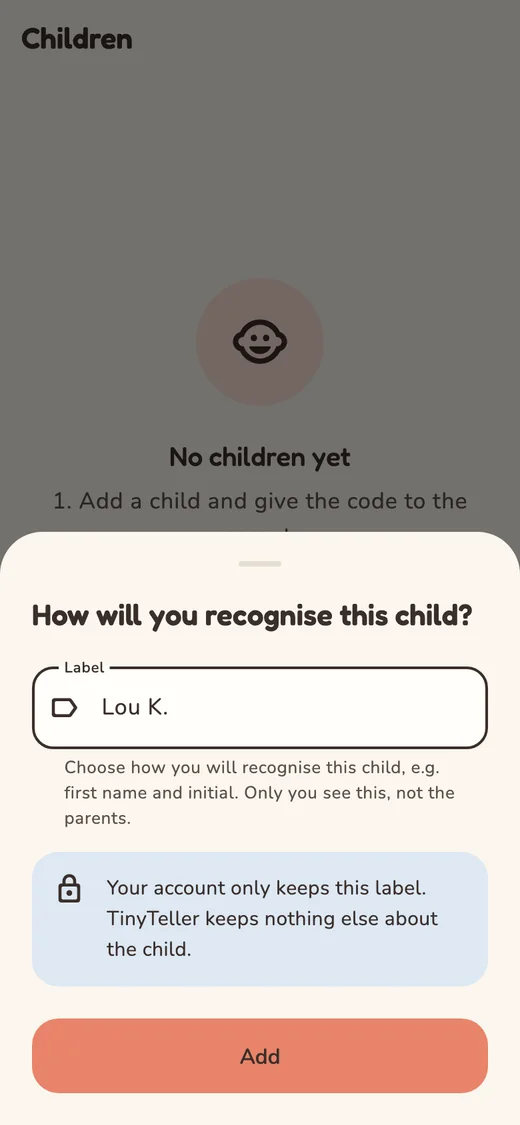
Add a child
In Children, tap Add a child. Choose a label that tells you which child it is, such as a first name and an initial.
Only you see that label. TinyTeller keeps nothing else about a child.
-
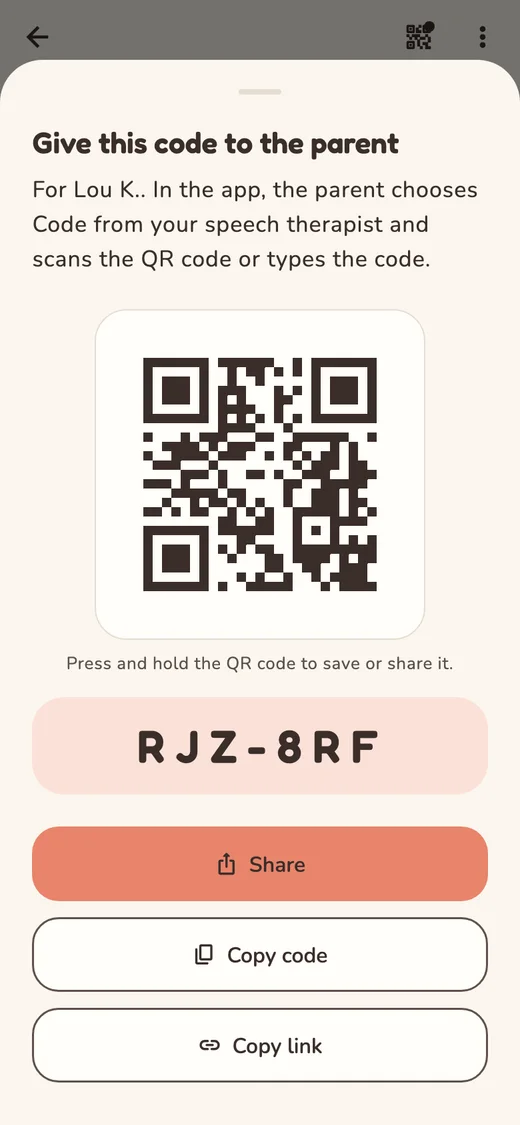
Give the code to the parent
Let the parent scan the QR code, or pass the code on with Share. In the app, the parent chooses Code from your speech therapist.
A code works once and stays valid for two weeks.
-
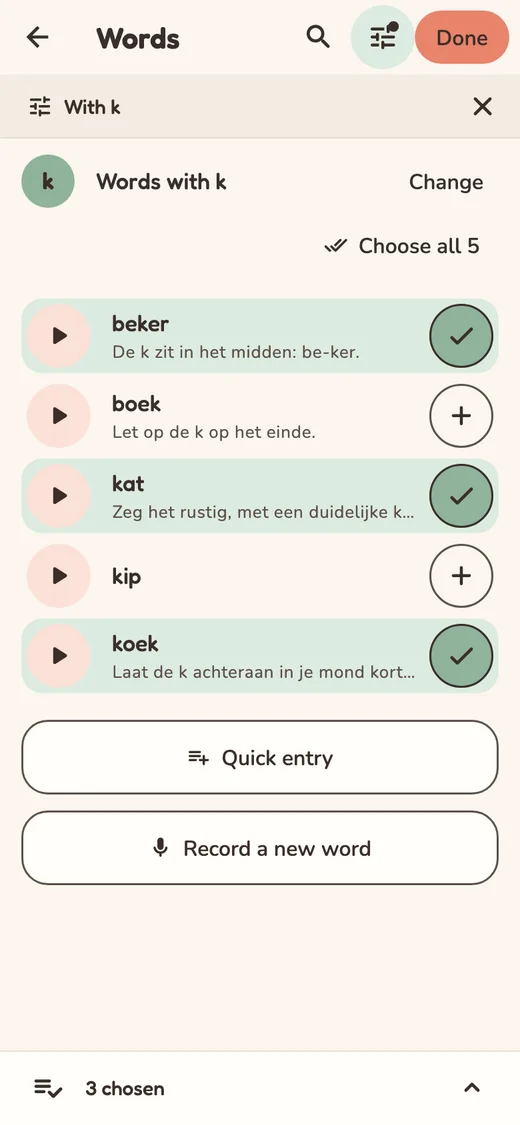
Make a list
On the child's page, tap Send a list, then Make a new list. Choose the sound and record the words with Record a new word.
They stay in your library. After that, a tap on + next to a word is enough.
-
Tap Done
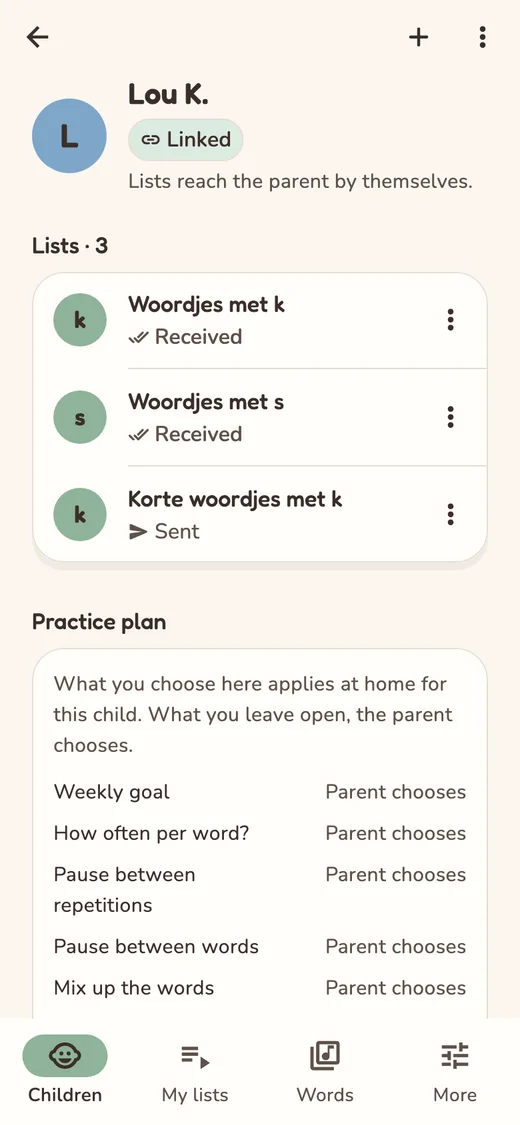
Tap Done at the top right. The list goes to the child at once and arrives in the parent's app by itself.
You see Sent, and Received once it is on the parent's device.
That's it
For the next child, repeat steps 2 to 5. The words you recorded stay in your library.
How do I…?
Enter this week's list quickly
- While choosing the words, tap Quick entry.
- Type or paste the words.
- Words from your library are chosen at once. You record the others one after the other.
Record a word for your library
- Go to Words and tap Add word.
- Type the word. A pronunciation tip and the sound are optional.
- Tap the microphone, say the word and tap again to stop. Listen to the recording and tap Save.
You record a word once and then use it in every list. While making a list you can do it straight away too, with Record a new word.
Change a list
- Go to My lists.
- Tap the three dots next to the list and choose Edit.
- Add or remove words, then tap Save.
Every parent who received the list gets the new version by itself. A word the parent recorded themselves stays with the parent.
Send a list to another child as well
- Go to My lists.
- Tap the three dots next to the list and choose Send to….
- Tick the children.
Set the practice plan
- Open the child in Children.
- At the bottom, tap Edit practice plan.
- Choose the weekly goal, how often per word, the pauses and the order, then tap Save.
What stays on Parent chooses, the parent chooses. The plan reaches the parent's device at the next check. You do not see how often they listen at home.
A code for a sheet of paper
- Go to My lists and tap the three dots next to the list.
- Choose Stand-alone code (no link).
Whoever enters that code gets that one list. New lists do not arrive by themselves then.
The parent has a new device
- Open the child's page and tap the three dots.
- Choose New code (new device) and give that code to the parent.
End a link or delete a child
- Open the child in Children.
- Tap the three dots at the top and choose Unlink or Delete child.
After unlinking, the parent keeps the lists that already arrived, but no new ones come. Deleting the child also removes the label and the code; your lists themselves stay.
What does the parent see, and what do I see?
The parent sees the name of your practice (or your own name), the lists you send and your practice plan. The child's label never reaches the parent's device. You only see whether a list has arrived, nothing of what the parent does in the app.
The free month, and what comes after
Your first month is free, with up to 3 children. Until when, you see in More under Account. To carry on, email us: you get an invoice for a year, and paying does not go through the app. If the free month ends without payment, nothing disappears: parents keep what they received and notice nothing, and you still see everything. Adding children and making, changing or sending lists works again as soon as your account is active.
I forgot my password
- On the sign-in screen, tap Forgot password?.
- Fill in your e-mail address. You get a code by e-mail.
- Type the code and choose a new password.
Pass the guide on to parents
Send the link tinyteller.app/guide/parents: every parent gets the guide in their own language. On paper works too: open the guide for parents and choose Print.
Not working?
The parent says the code does not work
A code works once and stays valid for two weeks. Open the child's page, tap the three dots and choose New code.
A list stays on Sent
The list arrives as soon as the parent opens the app and the device is online. Then you see Received.
I get no e-mail with the code
Look in your spam folder. After two minutes you can tap Send again in the app.
Are you a parent?
There is a guide of your own: getting the words into the app and listening a little every day.
User guide for parents